Bombeli
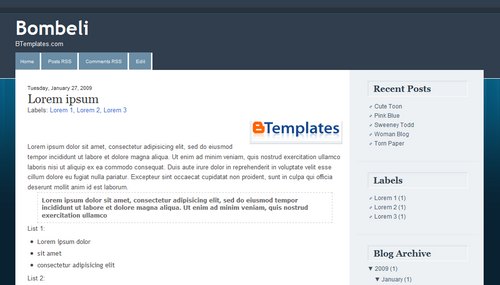
Dark Brown Ebong
Black Red Basic
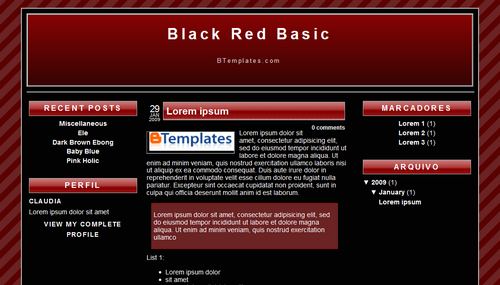
Orange
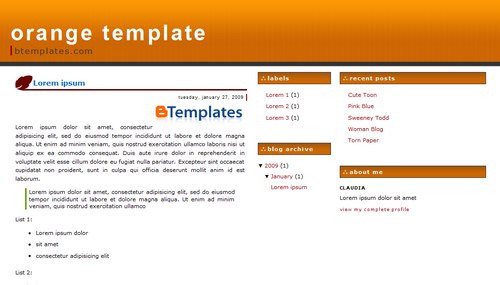
Template Songs
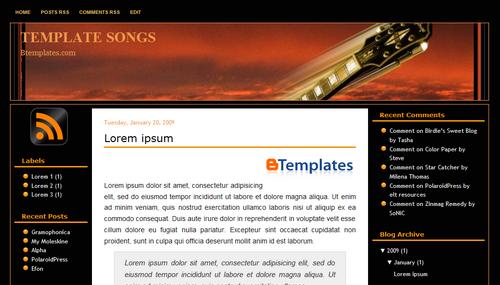
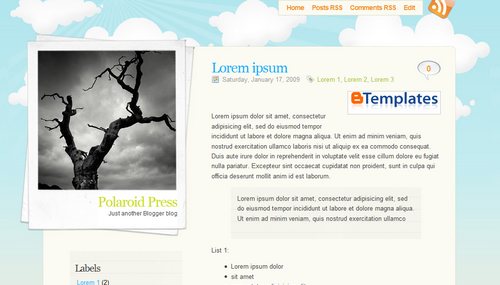
PolaroidPress
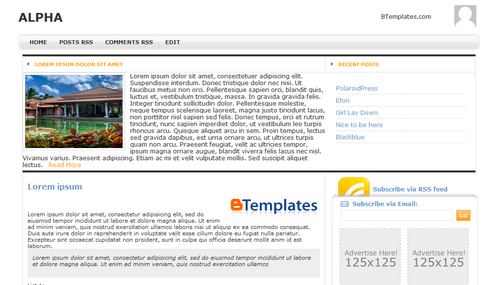
Alpha
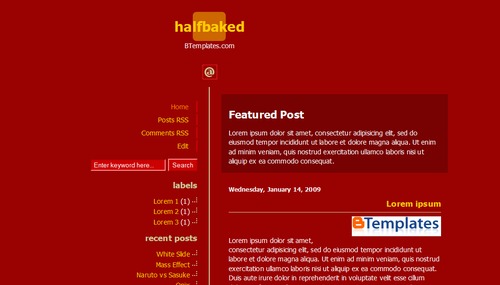
HalfBaked
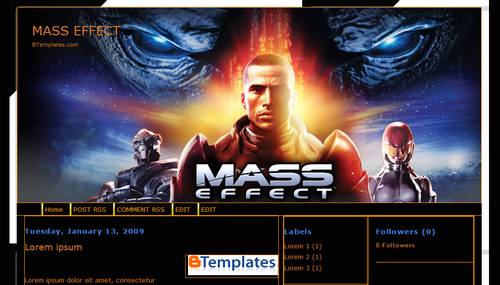
Mass Effect
Naruto Vs Sasuke
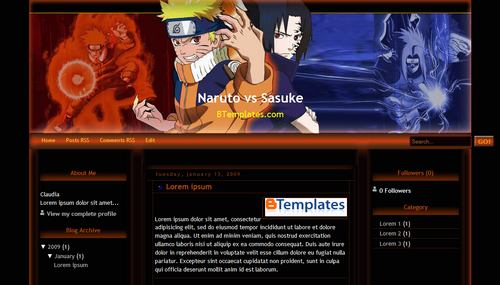
Darkness Inside
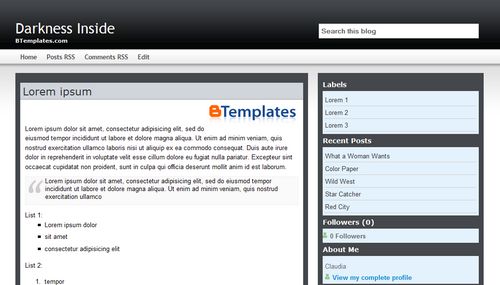
Red City

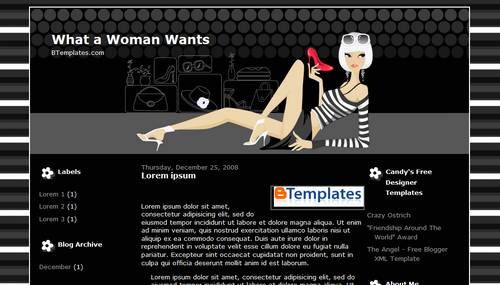
Bombeli
Dark Brown Ebong
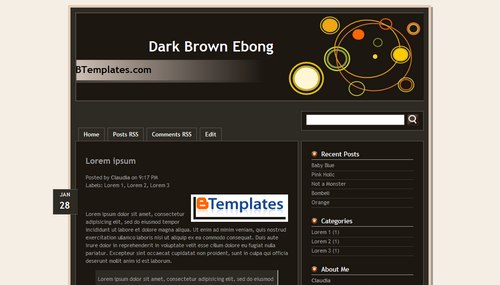
Black Red Basic
Orange
Template Songs
PolaroidPress
Alpha
HalfBaked
Mass Effect
Naruto Vs Sasuke
Darkness Inside
Red City
recent comment via Javascript has more advantage on appearance while recent comment via Feed is simple for the appearance but in the case of loading, it’s more faster.
How to use Feed:
Firstly, enter Layout -> Page Element -> Add a Page Element -> Feed and then in Feed URL, enter your feed address. There are two feed choices that can be used:
1. Use Feed Default Blogger
http://blog-name.blogspot.com/feeds/comments/default
2.Feed with FeedBurner
http://feeds.feedburner.com/blog-name
originally by : http://www.agusramadhani.com
 PS: Don’t forget to change the red color with your blog name / your feed comment name.

The function of Email Form Subscription is to let your loyal visitors to subscribe your new article/posting in to their email. So if your post a new article your subscriber will receive your article automatically. It’s very usefull, your subscriber will know if there is a new article, so they will come to visit your blog immediatly.
Here the trick to create Email Form Subscription.
1. visit this site : http://www.feedburner.com
2. You will see a box to enter your blog feeds. enter your blog feeds in to the box. Usually your blog feeds is like this : http://YOURBLOGNAME.blogspot.com/feeds/posts/default
3. If you have video file in your blog content, check on the “I am a podcaster”box, If not, it’s unnecessary. Then click “Next” Button.
4. After that, you must to fill a form, fill it with your information then click on the “Activate Feed”
5. If you’re succeed, you will see “Congrats your…..” notificaton.
6. On the buttom you will see a “Next” Button and a link “Skip directly to feed management”, choose this link.
7. You will see some menus on top. Choose “Email Subscription” menu.
8. On the left you will see some menu again, now click on the “Email Subscriptions”
9. Then click on the “Activate” button.
10. You will some code on the boxes. Choose code in the “Subsciption Form Code” box, and copy it. then click “Save” Button.
11. To plug it on your blog, go to “Layout–>>Add Page element–>HTML/Javascript” paste your code on the box.

Alexa Rank is another factor that affects your site when it comes to monetizing it using link sales or other monetizing methods. But is the Alexa Rank really an Absolute factor? Well, let’s discuss.
First, when I tried monitoring the Alexa rank of some of my blogs, I realize that there are some really simple tricks that can boost your Alexa rank. One simple method that everybody knows is the Alexa Widget. Put up and Alexa Widget on your website and see your Alexa rank rising. It’s that simple.
Another cool trick is using the Alexa Toolbar method. Previously, people use to install Alexa Toolbar for IE and the Search Status Plugin for Firefox. Both of these use to do the job very effectively. But now, Alexa has released their Firefox toolbar and things has become much more easier.
Yet another trick is the Browser Homepage method. Put your website as your browser home page and let it load every time when you open up a new browser. That’s it.
All of these techniques work wonderfully and they are damn effective. Do it to see for yourself and come back here to leave a comment.

